Forum Archive

image FFT project

jmv38

Hello everyone!
I am a complete noob here. My main programming experience is from Codea / lua, a great environment to quickly make small games.
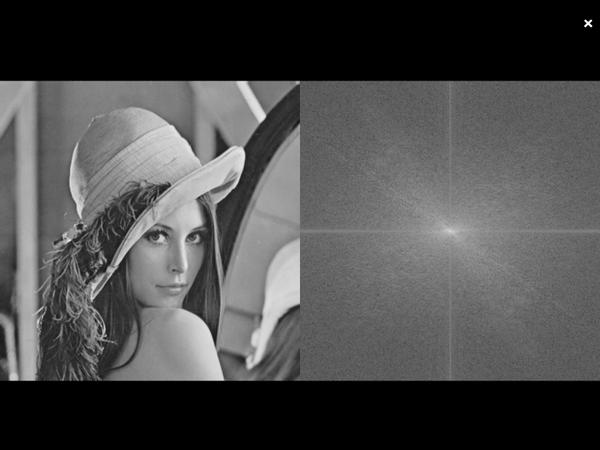
I try to learn Python via an inetractive FFT program i will be improving progressively.
I'll post the code if anyone is interested. Is there a 'usual way' to create gists and post them?
Thanks.

ccc

Welcome to the community! I assume by FFT, you mean fast Fourier transforms.

Posting to GitHub is the usual method used to share code. Use a GitHub gist for projects where you want to be the sole contributor of code. Use a GitHub repo for projects where you want others to help to improve the code.

See: https://github.com/Pythonista-Tools/Pythonista-Tools

jmv38

Thanks for the link.
Is there a tool somewhere to create an anonymous gist from the pasteboard content?
Here is my current screen:

jmv38

hello i start to face problems for managing arrays (from numpy) image (from pil) and image (from scene). Too nany different objects with the same information. I need:
- to have a grayscale image in memory.
- an array of floats for the fft.
- a RGB image for the scene, to draw into with my finger.
By the way when i draw in the image, my program crashes systematically after some intensive drawing, i guess i am creating too many temporary image objects that are not garbage collected, probably when converting the pil image into an rgb image for the scene, after each touch.... And systematic forced garbage collection is limiting my frame rate to roughlt 2 hz, which is too slow....
Could anyone point me a example project with same kind of needs, so i can study his solutions?
Thanks.

jmv38

here is the code just in case it my help you to understand my question.
(i know it is ugly, i am ashamed to post this, but i've got to start somewhere...).


# my FFT

from scene import *
from math import sqrt, sin, pi, floor
import Image, ImageDraw
#import Image

import ImageOps, ImageFilter
import numpy as np

class fftScene (Scene):
    def setup(self):
        self.setupData0()
        self.updateData1( self.pilImg0 )
        self.showTouch = False 

    def setupAllData(self):
        # image size
        s = 512
        self.img_size = s
        # now prepare image
        img_name = 'Test_Lenna'
        img = Image.open(img_name)
        img = img.resize((s, s), Image.BILINEAR)
        img = ImageOps.grayscale(img)
        # gray image for pil and RGBA image for scene
        self.pilImg0 = img

    def setupData0(self):
        # image size
        s = 512
        self.img_size = s
        # now prepare image
        img_name = 'Test_Lenna'
        img = Image.open(img_name)
        img = img.resize((s, s), Image.BILINEAR)
        img = ImageOps.grayscale(img)
        # gray image for pil and RGBA image for scene
        self.pilImg0 = img 
        self.sceneImg0 = load_pil_image(img.convert('RGBA'))

    def updateData1(self, pilImg):      
        # updates the FFT image from data
        pix = np.array(pilImg) 
        imgFFT = np.fft.fft2(pix)
        imgFFT = np.fft.fftshift(imgFFT)
        imgFFT = np.abs(imgFFT)
        imgFFT = np.log10(imgFFT + 1)
        maxi = np.max(imgFFT)
        mini = np.min(imgFFT)
        imgFFT = (imgFFT-mini) / (maxi-mini) * 255
        self.pilImg1 = Image.fromarray(imgFFT)
        self.sceneImg1= load_pil_image(self.pilImg1.convert('RGBA'))

    def draw(self):
        background(0, 0, 0)
        # tx = self.size.w/2 - self.img_size/2
        tx = self.img_size
        ty = self.size.h/2 - self.img_size/2
        image(self.sceneImg0, 0, ty)
        image(self.sceneImg1, tx, ty)
        if self.showTouch :
            fill(1,1,1)
            w = 20
            # ellipse(self.tpos.x-w/2, self.tpos.y-w/2, w, w)
            self.drawCircle(self.tpos.x-tx, self.img_size - (self.tpos.y-ty), w)

    def drawCircle(self,x,y,w):
        bbox =  (x - w/2, y - w/2, x + w/2, y + w/2)
        draw = ImageDraw.Draw(self.pilImg1)
        draw.ellipse(bbox, fill=0)
        del draw
        self.sceneImg1= load_pil_image(self.pilImg1.convert('RGBA'))

    def touch_began(self, touch):
        self.tpos = touch.location
        self.showTouch = True

    def touch_moved(self, touch):
        self.tpos = touch.location

    def touch_ended(self, touch):
        self.tpos = touch.location
        self.showTouch = False 

if __name__ == "__main__":
    run(fftScene(), frame_interval=1)
jmv38

@ccc would you help me to correctly format the code above? Thanks.
@anyone: any suggestion to help me? Thanks......Thanks........Thanks....... Anyone here? .... here? ....here?
;-) just kidding.

briarfox

Hiya jmv38 you can use < pre> < /pre> like so

code

ccc

The pre method described above will not give you syntax coloring...

To post code to the forum:

  • Put a blank line
  • Followed by ```python
  • Followed by your Python code
  • Followed by ```

You will get syntax coloring tailored to the Python language.

Those are backtick (`) characters that you can get by putting the onscreen keyboard in number mode and then doing tap-and-hold on the comma key and selecting the leftmost character. It is a bit of a chore because you have to put the onscreen keyboard back into number mode after each character typed.

jmv38

thanks for the syntax. I was almost there! Now it looks good.

jmv38

Question: in my code above, drawing into to right image, with my finger, crashes pythonista after too much drawing. You can test it. Any idea of what i am doing wrong?
Thanks!

omz

@jmv38 You're probably running out of memory. When you use load_pil_image, you should also use unload_image to remove images you don't need anymore.

JonB

@jmv, by the way, not sure if anyone ever answered your gist question.

In the pythonista action menu, (wrench icon from the editor) you can click Export. This lets you create anonymous, private, or non-anonymous gists.

Another useful tool is gistcheck, which you would create a few scripts in the action menu useful for committing changes to gists. There is a link on the pythinista tools repo.

jmv38

@omz @JonB thanks for your replies! I will check that.

jmv38

@omz adding remove_pil_image before updating it works. Thanks!
@RonJ thanks to your tip, i made this gist of new version: https://gist.github.com/acb082834f37c67fa910
Now i can proceed in my project.

jmv38

@omz
Question: instead of unload_image could i use del self.sceneImg1? Would it makes the same?
This is just to know. Thanks.

ccc

Try print(type(self.sceneImg1)) which will show you that self.sceneImg1 is a str, not the image itself. Deleting the string from memory will NOT unload the image itself from memory.

jmv38

@ccc thanks a lot!

jmv38

@ccc another noob question (i hope you dont mind me taging you? If you do mind, just let me know):
I am trying to build a ui interface with buttons and my 2 images. But i dont see clearly how i can update a ui.image? Specially when the image is defined via the interactive interface builder, it is not clear how to access it. Probably obvious, but i am still learning... Thanks!

brumm

Maybe you like to check the class MyImageView in the FileManager. It auto rotate the image when you rotate the device.

jmv38

@brumm thanks for this link. Now i see how to get the touch when the image is touched to interact with the image. Not sure if the draw() will be called automatically, or i if should call it myself from the touch function? Thanks.
[edit] i've just loaded FileManager repo (with gitRepo.py) but when i run it, there is an error (line 115, some attribute missing to something). Is it expected?

brumm

Pythonista Documentation


    def draw(self):
        # This will be called whenever the view's content needs to be drawn.
        # You can use any of the ui module's drawing functions here to render
        # content into the view's visible rectangle.
        # Do not call this method directly, instead, if you need your view
        # to redraw its content, call set_needs_display().
        # Example:
        path = ui.Path.oval(0, 0, self.width, self.height)
        ui.set_color('red')
        path.fill()
        img = ui.Image.named('ionicons-beaker-256')
        img.draw(0, 0, self.width, self.height)

ccc

Also check out @brumm' UI tutorial... https://github.com/humberry/ui-tutorial

jmv38

@ccc an @brumm i think the script SpecialButton2.py in ui-tutorial is exactly the script example i needed to start.
Thanks a lot!