Forum Archive

Scripter - Pythonista UI animation framework built on ui.View.update()

mikael

Logo

Note: The usage and API has changed a bit since this first post. Please check the README.md in the repository for latest docs.

Single-file, no-dependencies, no-surprises UI animation framework powered by ui.View.update, that enables writing intuitive animation scripts using generators:

@script
def sample(self):
  self.move_to(50, 200)
  self.pulse('red')
  yield
  self.hide()

The above script, when called as a function, will at the same time move the view and pulse the background in red, then hide it after the previous actions are complete. Scripter supports an arbitrarily complex combination of sections separated by yields, and calling several sub-scripts to get the combo you need, all coded in an intuitive and reliable way.

Check the repository or download the scripter.py file and run it to see a demo featuring showing and hiding, movement, color changes, counting, rotation, controlling several views simultaneously, animation easing functions, interaction with custom ui.View.draw, as well as pausing or cancelling the animation.

Checking the demo script code is probably the best way to get started, as real documentation is still on the todo list.

Features:

  • Inherits ui.View, so you can enable it by inheriting Scripter to use all effects easily as in the example above.
  • Or use as an animation control center by creating a Scripter instance, then presenting it or placing it as a hidden subview somewhere. All effects support providing the target view as a parameter.
  • Animation primitives:
    • set_value (typically for a range)
    • slide_value
    • timer
  • Animation effects:
    • hide, show
    • move_to
    • slide_color
    • pulse (a color)
    • rotate
    • ... more to come, feature requests welcome
  • Cancel all animations or a specific script
  • Pause and continue all animations
  • yield 'wait' - shorthand for pausing for the default duration (0.5 seconds), often needed to make animations feel more natural
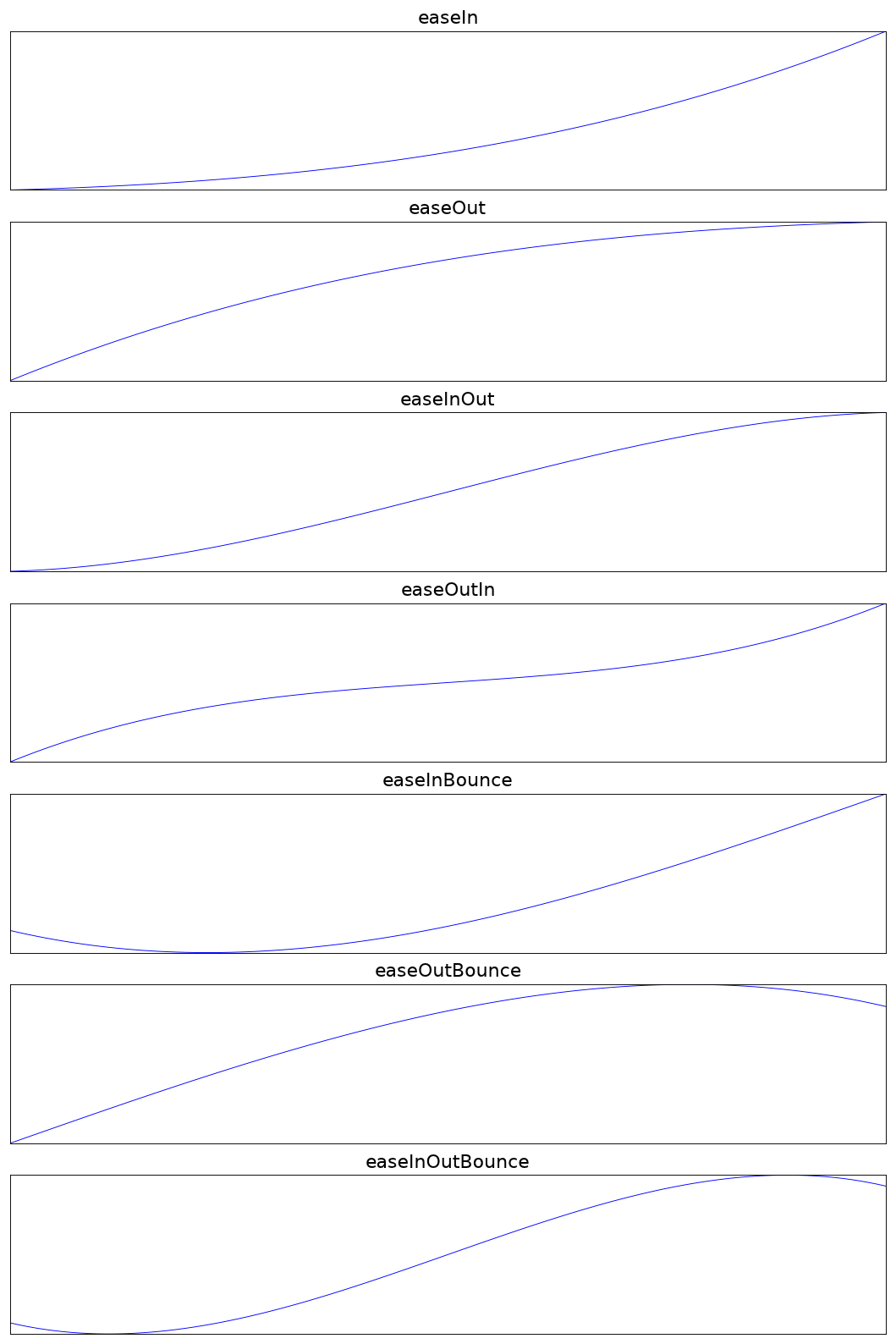
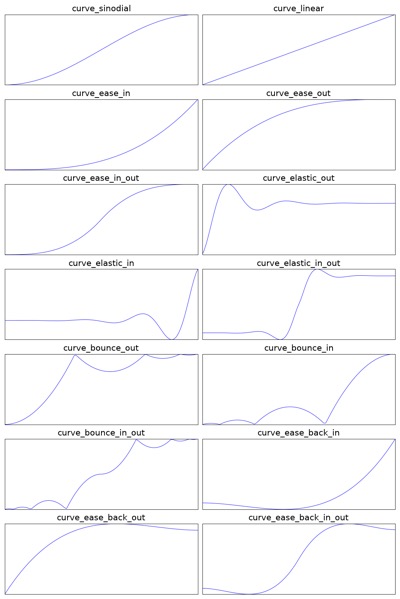
  • slide_value accepts an ease_func parameter, for even more natural-feeling animations. Check the curves to pick the right function for the occasion.

Note: As of Sep 15, 2017, ui.View.update is only available in Pythonista 3 beta.
Phuket2

@mikael , both your links are pointing to the raw contents of scripter.py

mikael

@Phuket2, thanks, fixed.

cvp

Syntax error in line 343
f' not supported in my Pythonista

mikael

@cvp, as said, this relies on new update method of ui.View, which is only available in beta, but should be part of the soon-to-be-released App Store version.

cvp

@mikael Sorry, I had not read it correctly 😰

mikael

@cvp, thanks for trying and hopefully it will work for everyone soon. Or check out if you could still get the beta - I have had no hassles with it.

mikael

Added fly_out effect with a direction option, see demo.

ccc

Syntax error in line 343
f' not supported in my Pythonista

f'strings' are a Python 3.6+ feature which is why they work in the Pythonista beta but not in the App Store version.

I saw a really cool module https://github.com/asottile/future-fstrings that allows all Pythons (even 2.7!!) to do f-strings just by adding:
# -*- coding: future_fstrings -*- as the first or second line of the file. No import or anything. Not sure if it will work in Pythonista but pretty mindbending nevertheless.

cvp

@ccc Thanks but I'll wait for next version...

mikael

With some more practical experience with this I decided to change the way effects are used, to remove the need to define any classes or functions just to use simple effects.

There’s also now some proper API docs.

From the Quick Start:

Quick start

In order to start using the animation effects, just import scripter and call the effects as functions:

from scripter import *

hide(my_button)

Effects expect an active UI view as the first argument. This can well be self or sender
where applicable.

If you want to create a more complex animation from the effects provided, combine them in a
script:

@script
def my_script():
  move(my_button, 50, 200)
  pulse(my_button, 'red')
  yield
  hide(my_button)

Scripts control the order of execution with yield statements. Here movement and a red
pulsing highlight happen at the same time. After both actions are completed, my_button fades
away.

Run scripter.py in Pythonista to see a demo of most of the available effects.

mikael

And courtesy of iOS 11 screen recording, here’s a video of the demo.

ihf

Hmm...I must be doing something wrong. Tried to run scripter.py ( to see demo) but all I get is https://imgur.com/a/na0Nx

mikael

@ihf, I did not test on iPad, and present had a wrong argument.

Either download the latest or change line 539 to:

v.present('full_screen')
ihf

@mikael Thanks that worked! (In the version I have, it was line 552).

mikael

@omz, is there a way to access the various timing options in scene Action as a function of t? Would like to have the option of using those in Scripter.

enceladus

See https://github.com/controversial/ui2/blob/master/ui2/animate.py

The above is mainly for ui animation. You may look at scene_drawing.py code to see how various timing options are implemented.

mikael

@enceladus, thanks, your answer guided me on a hunt through UIKit and SceneKit docs. I could not find the easing functions conveniently exposed by Apple.

enceladus

scene_drawing.py in modules/standard library 3.5/site-packages. You can use curve_sinodial, curve_ease_in like functions.

enceladus

current_func = lambda s,t,d:s+curve_sinodial(t)*d should work (I am outside and I will post the proper working code later.)

mikael

@enceladus, thanks! Need to test this, but looks like all of the functions there are directly useable with Scripter.

mikael

So yes, you can use these with any of the slide_x scripts for example:

import scene_drawing

slide_value(view, 'y', 100, ease_func=scene_drawing.curve_bounce_out)

I could not find the functions documented anywhere, so here’s a reference:

Easing functions

enceladus

Here is a simple demo example that I used for testing. I hope it is useful.

from scripter import *
import ui
import scene_drawing

@script
def custom_action(my_view):
    move(my_view, 200, 200)
    pulse(my_view, 'red')
    yield 1
    hide(my_view)

@script
def custom_reverse_action(my_view):
    show(my_view)
    yield
    move(my_view, 100, 20)
    pulse(my_view, 'black')

toggle = True
def button_action(sender):
    global toggle

    s = sender.superview
    ease_func = scene_drawing.curve_sinodial
    #ease_func = scene_drawing.curve_ease_in
    #ease_func = scene_drawing.curve_ease_out
    #ease_func = scene_drawing.curve_ease_back_in
    #ease_func = scene_drawing.curve_ease_back_out
    l = s['label1']
    title = sender.title
    if title == 'move':
        if toggle:
            move(l, 200, 200, ease_func=ease_func)
        else:
            move(l, 100,20, ease_func=ease_func)
    elif title == 'hide':
        if toggle:
            hide(l, ease_func=ease_func)
        else:
            show(l, ease_func=ease_func)
    elif title == 'rotate':
        if toggle:
            rotate(l, 30, ease_func=ease_func)
        else:
            rotate(l, 0, ease_func=ease_func)
    elif title == 'custom':
        if toggle:
            custom_action(l)
        else:
            custom_reverse_action(l)
    elif title == 'color':
        if toggle:
            slide_color(l, 'text_color', 'green')
        else:
            slide_color(l, 'text_color', 'black')
    elif title == 'count':
        if toggle:
            set_value(l, 'text', range(1,101), 
                lambda c: f'count: {c}')
        else:
            set_value(l, 'text', range(100, 0, -1), 
                lambda c: 'Text to be animated' if c == 1 else f'count: {c}')
    elif title == 'fly_out':
        if toggle:
            fly_out(l, 'down')
        else:
            move(l, 100, 20)
    elif title == 'font_sz':
        if toggle:
            slide_value(l, 'font', 40, start_value=20, map_func=lambda sz: ('Helvetica', sz) )          
        else:
            slide_value(l, 'font', 20, start_value=40, map_func=lambda sz: ('Helvetica', sz) )          
    toggle = not toggle

v = ui.View(frame=(0,0,400,400))
l = ui.Label(text='Text to be animated', font=('Helvetica', 20), 
            name='label1', frame=(100,20,200,100))
b1 = ui.Button(title='move', frame=(20, 300, 80,50), action=button_action)
b2 = ui.Button(title='hide', frame=(120, 300, 80,50), action=button_action)
b3 = ui.Button(title='rotate', frame=(220, 300, 80,50), action=button_action)
b4 = ui.Button(title='custom', frame=(320, 300, 80,50), action=button_action)
b5 = ui.Button(title='color', frame=(20, 350, 80,50), action=button_action)
b6 = ui.Button(title='count', frame=(120, 350, 80,50), action=button_action)
b7 = ui.Button(title='fly_out', frame=(220, 350, 80,50), action=button_action)
b8 = ui.Button(title='font_sz', frame=(320, 350, 80,50), action=button_action)
v.add_subview(l)
v.add_subview(b1)
v.add_subview(b2)
v.add_subview(b3)
v.add_subview(b4)
v.add_subview(b5)
v.add_subview(b6)
v.add_subview(b7)
v.add_subview(b8)
v.present('sheet')
mikael

@enceladus, thanks again. Looks like something that I was thinking of doing, splitting out the demo from the main code, and having buttons to launch specific effects. Would you mind if I developed this further and included it in the repo?

enceladus

Fell free to use whatever way you want. Anyway it is mostly your code.

mikael

@enceladus, in your custom_action, you are yielding 1 (second), which is not doing what it intuitively should, i.e. wait for 1 second after the previous actions have completed. Currently you need to have a yield followed by the yield 1.

This confirms the misgivings I have had about the yield wait syntax. I would want it to work the way you used it.

mikael

In the latest version yield now works as you would expect, i.e.:

move(view, 100, 100)
yield 2
pulse(view)

Also, scene_drawing easing functions are wrapped, so you can use them without separately importing them.

enceladus

ok. Thanks.

Ti Leyon

This is way cool @mikael and really good extension @enceladus. Whenever I can spare the time I will try to extend it into a basic universal animation studio on all platforms. Sounds really challenging though but isn’t challenge the cradle of creativity?.

mikael

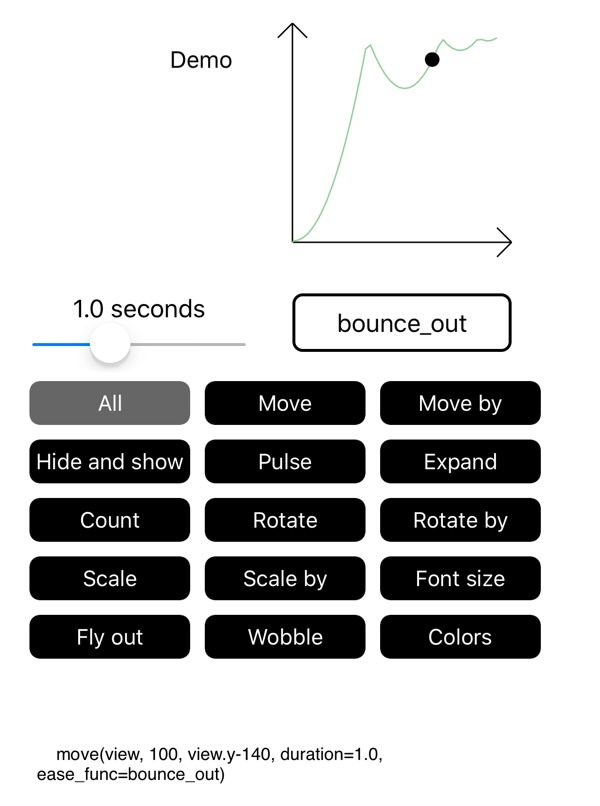
Check the first post for an image of scripter-demo.py. This additional script fulfills several roles:

  • My testbed for checking that everything works
  • Demo of all effects (click ā€Allā€)
  • ā€Animation studioā€ where you can tweak the duration and easing functions to get the right effect

ā€Colorsā€ demonstrates running an effect continuously and canceling it.

Code for the effects is shown as they are run, and can be easily copy-pasted elsewhere.

Tweaks to the core functionality include:

  • Ending a script and starting the next one happen in the same call to update, removing any stutter caused by a no-op last call to a script.
  • Added some more effects like rotate_by to have feature parity with Scene animations
  • Added some more effects like wobble just for fun
  • Added some more easing functions - check the reference for the 21 alternatives.
mikael

Added a not-at-all-essential roll_to effect that takes into account the distance to be traveled and rotates the view an appropriate amount at the same time to make it look natural. Showcased below as a menu reveal effect.

Menu reveal

Also added Vector in the scripter.py, as it is often convenient for effects.