Forum Archive

[Beta] Tinkering with Pythonista's internals using objc_util

omz

Another objc_util example (yes, I'm really excited about this module)...

This one's really just for fun because I wanted to see if I could make it work at all. As the previous MapView example, this is also a custom view class, but of a completely different kind... It uses Pythonista's own code editor, syntax highlighter, and extended keyboard classes, and wraps them in a convenient ui.View package.
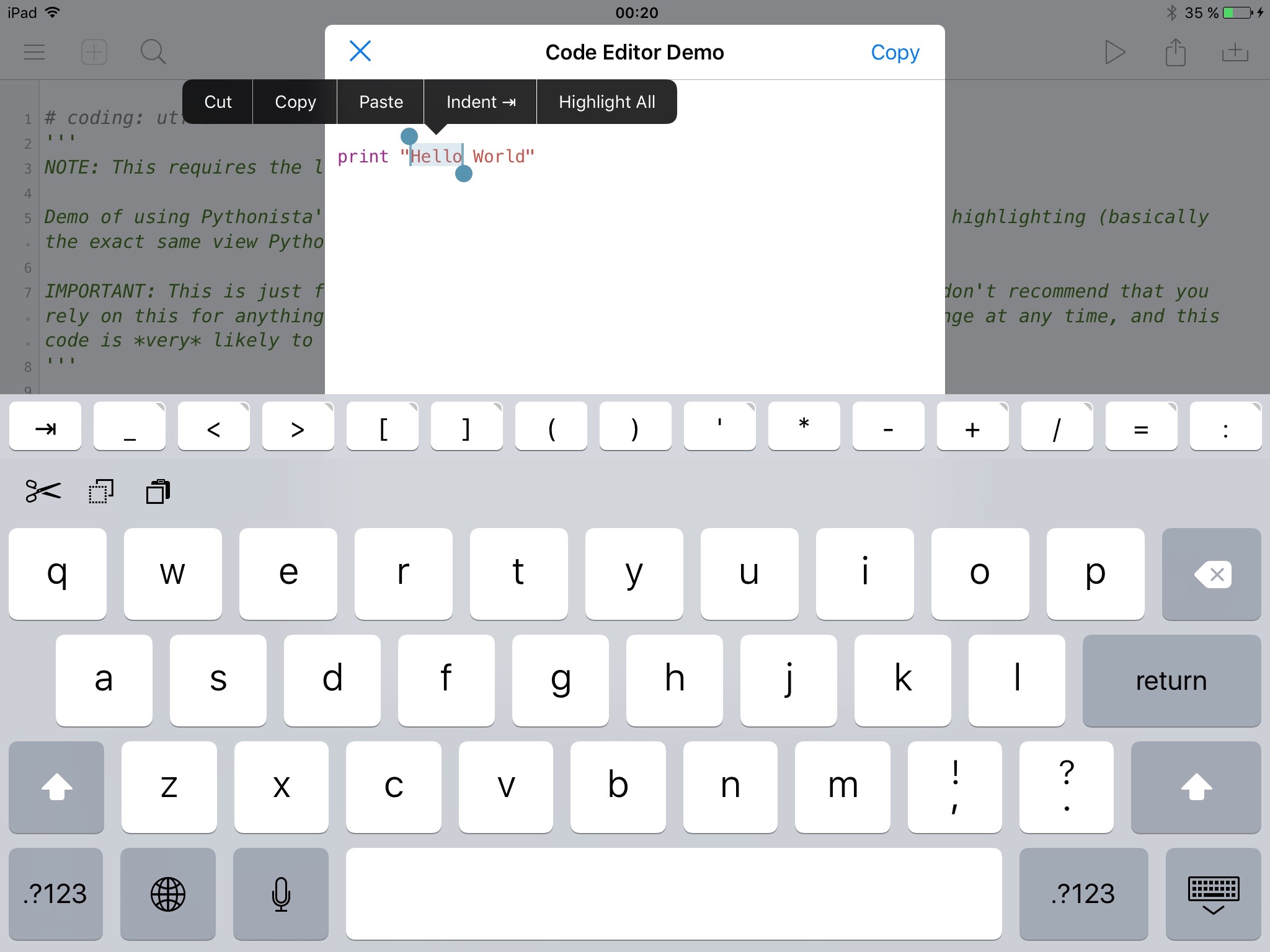
Screenshot

Here's the code:

→ Code Editor Demo.py (Gist)

It supports Python, HTML, JavaScript, and Markdown for syntax highlighting (there's also a 'text' mode that doesn't highlight anything). The type of extended keyboard is chosen automatically, and it can also be disabled entirely. Things like the "Highlight All" menu item, and automatic character pairs are supported as well.

I've mentioned it in the comments, but it's worth pointing out again: Do not rely on this for anything important. It's quite likely to break in the future, but it's fun to play around with. :)
Obelisk

Pretty cool,i would make effort to check it out.

JonB

has 160022 hit testflight yet?

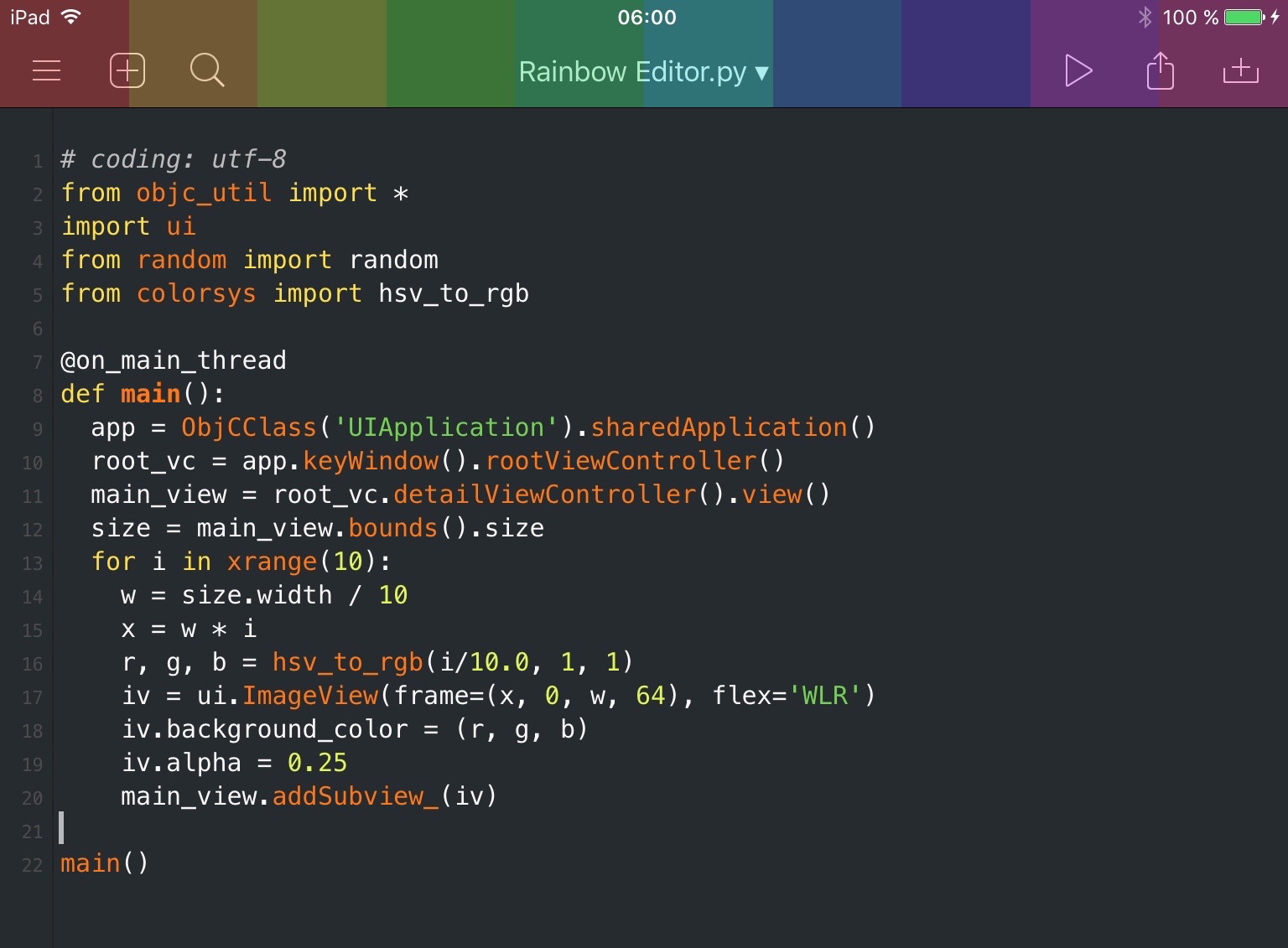
in theory, could this be used to add new butttons to the topline on for the real editor instance? all that empty space between the search button and play button is just begging to be used (now that sidebar mode went away)..

omz

has 160022 hit testflight yet?

Now that you mention it, I forgot to send the invites... You should get a notification in a minute or so.

Webmaster4o

Got it!

omz

in theory, could this be used to add new butttons to the topline on for the real editor instance? all that empty space between the search button and play button is just begging to be used (now that sidebar mode went away)..

Well, theoretically, you could do all sorts of crazy stuff... ;)

Screenshot

omz

I should warn you that you'll probably run into memory management-related crashes when you try to add interactive things (e.g. buttons) to views that aren't managed by the ui module.

The reason for this is that the reference to the Python object will likely be garbage-collected while the underlying (Objective-C) UIView still exists. You can get around this for example by putting a reference to your view into one of the built-in modules as an attribute (something like ui._keep_this_around = my_view).

Another trick to keep an object from being garbage-collected is to force a reference cycle that the garbage collector can't resolve: my_view._cycle = my_view; my_view.__del__ = lambda x: None (I wouldn't really recommend this approach; while you don't "pollute" any namespace, it's more difficult to get rid of the object when you actually want to).

ccc

I find it super impressive that the new Beta enables you can pass Python objects into ObjC functions and all conversions are automaticly done for you. So cool!!

It was mentioned by someone else in the forum but Ole, have you looked at cffi in addition to ctypes for Pythonista?

Please keep up the awesome work.

dgelessus

@ccc, if you want to you can just download and install cffi. It is written purely in Python, and as long as you set the backend to be cffi.backend_ctypes.CTypesBackend it doesn't need a C compiler to work.

TutorialDoctor

This is super! Thanks Ole! Can't wait for the final product.

filippocld223

Hi,
How can i access the Pythonista console view using objc_util?

Thanks in advance
Filippo

JonB

here is the method i used to explore the wonderful world of pythonista's view heirarchy. we will search for an objective c object that contains some known text or classname. the custom classes tend to start with OM...

from objc_util import *
w=ObjCClass('UIApplication').sharedApplication().keyWindow()
main_view=w.rootViewController().view()

def filter_subviews(view,text=None, objcclasstext=None):
   matching_svs=[]
   sv=view.subviews()
   if sv is None:
      return matching_svs
   for v in sv:
      if objcclasstext and objcclasstext in v._get_objc_classname():
         matching_svs.append(v)
      if text and hasattr(v,'text'):
         if str(v.text()) and text in str(v.text()):
            matching_svs.append(v)
      matching_svs.extend(
       filter_subviews(v, text=text, objcclasstext=objcclasstext))
   return matching_svs

# don't find editor window, so concatenate string
print 'find'+'me'
# in this case, only one entry will be returned.  otherwise, may need to look at list to figure out which view is the one you are seeking.
console_view=filter_subviews(main_view,'find'+'me')[0]

once you find the thing you are looking for, you can traverse up and down the view heirarchy by using superview and subviews. for instance, maybe you dont want the actual console textview, but you want the text input

console_view.superview().subviews()

gives a clue, although in some cases you may have to traverse up or down a few levels to find what you are looking for. once you find the classname, note it for future use, as you can search dirsctly for the classname instead.

i also found it useful to walk portions of the subviews, printing out a "tree", where classname, and frame are printed. i eventually thought that a TreeView type object brower might be useful, to browse the tree

filippocld223

Thanks

omz

@JonB Quick tip: UIView has a built-in recursiveDescription method that produces a tree-like representation of all subviews.

filippocld

Oh, that's the most useful thing i've ever seen :O

nfmusician

Understanding this is for experimentation only, how would one go about modifying OMPythonSyntaxHighlighter or making a custom syntax highlighter class?

cvp

@nfmusician I don't know anything about NSRegularExpression, but, only for testing, a little modif in @omz code → Code Editor Demo.py (Gist)

allows to change rule for Python comment, from #xxxx into &xxxx

        editor_view = OMTextEditorView.alloc().initWithFrame_syntaxHighlighterClass_theme_(f, SyntaxHighlighter, theme)

        # ============= begin
        # https://forum.omz-software.com/topic/2014/beta-tinkering-with-pythonista-s-internals-using-objc_util/12               
        rules = editor_view.syntaxHighlighter().syntaxHighlightingRules()
        for rule in rules:
            print(rule.scopeName())
            if rule.regex():
                print('   NSRegularExpression pattern=',rule.regex().pattern())
                if str(rule.scopeName()) == 'comment':
                    #print(dir(rule))
                    comment_pattern = rule.regex().pattern()
                    comment_pattern = ns(str(comment_pattern).replace('#','&'))
                    comment_options = rule.regex().options()
                    regex_new = ObjCClass('NSRegularExpression').alloc().initWithPattern_options_error_(comment_pattern, comment_options, None)
                    rule.setRegex_(regex_new)
                    print('   NSRegularExpression pattern=',rule.regex().pattern())
        print(dir(rule))
        # ============= end 

cvp

@nfmusician still only for testing: how to modify color of a rule, here the comment

        PA2UITheme = ObjCClass('PA2UITheme')
        theme_dict = PA2UITheme.sharedTheme().themeDict().mutableCopy()
        theme_dict.autorelease()
        theme_dict['font-family'] = 'Menlo-Regular'
        theme_dict['font-size'] = 14
        # ============= begin
        #print(theme_dict)
        new_theme_dict = {}
        for x in theme_dict.allKeys():
            #print(x._get_objc_classname(),x)
            if str(x) == 'scopes':
                new_dict_scopes = {}
                for y in theme_dict[x].allKeys():
                    #print(' ',y._get_objc_classname(),y)
                    if str(y) == 'comment':
                        new_dict_comment = {}
                        for z in theme_dict[x][y].allKeys():
                            #print(' ','-',z._get_objc_classname(),z)
                            if str(z) == 'color':
                                new_dict_comment[z] = "#DC7633" # new color
                            else:
                                new_dict_comment[z] = theme_dict[x][y][z]
                        new_dict_scopes[y] = new_dict_comment
                    else:
                        new_dict_scopes[y] = theme_dict[x][y]
                new_theme_dict[x] = new_dict_scopes
            else:
                new_theme_dict[x] = theme_dict[x]
        theme_dict = new_theme_dict
        #print(theme_dict)
        # ============= end
        theme = OMSyntaxHighlighterTheme.alloc().initWithDictionary_(theme_dict)
        theme.autorelease() 

ccc

Is there a way to mark Python syntax errors like print “Hello World” in blinking red?

cvp

@ccc It is only an editor, thus it does not check anything about Python rules. At least' that's what I think. For instance, it recognizes Python reserved words but that's all

cvp

@ccc Is that not what Analyze (pyflakes) tool does?

ccc

It is a difference between active and passive. The Pythonista editor is passive because I have to manually run pyflakes while VSCode is active because it updates the syntax highlighting as I type by running flake8. Given the speed of current iOS CPUs, active syntax highlighting might have acceptable performance.

cvp

@ccc Ok, I understand but I wanted to say in my answer is that current Pythonista Editor does not allow to intercept at typing, it only checks content with some easy rules.

cvp

@ccc Upon reflection, I think that it should be possible, via the delegate of the editor's TextView, to intercept the modifications of the source and to execute a code, like flak8, to check the syntax of the script. But it seems to be quite complex

ccc

It would not need be letter-by-letter, but it would be cool if fixers like "isort ; black ; pyupgrade ----py37-plus" were autorun on the code in the editor. The trick would be for the fixers to fail gracefully if the user is in mid-thought.

cvp

@ccc Agree but this kind of particular process in the Pythonista Editor should be for @omz only, don't you think so? And, sincerely, I don't have any hope for such functionality